With the Magic Boxes tool you may create a model of boxes (concepts), with items (attributes), and lines (relationships). Click the box tool in the tool bar (brown background) to create a box, by clicking on an empty space in the board. To move a non selected box, click the box and keep the mouse down while moving it. Click the box to select it. Click again to deselect it.
A name of the selected box may be entered in the Box field of the tool bar. A box item may be created by entering its name in the Item field of the tool bar and by clicking on the Add button. An existing item may be selected by entering its name and clicking on the Get button.
Click the line tool to create a line between two boxes by clicking on the boxes, then by clicking on an empty space in the board. Click the line to select it. Click again to deselect it. The selected line may be displayed in the tool bar by clicking on the Get button.
You may transform a model to JSON by clicking on the To JSON button above the JSON panel. Copy the JSON text from the JSON panel into a local text file to save the model. Later, paste the JSON text into the JSON panel and click on the From JSON button to obtain back the model.
The Magic Boxes tool is developed in Dart to start learning Dart (after reading the Getting Started section, developing the first example, and the Ping Pong game). The tool is based on Magic Boxes and Modelibra Modeler, both developed in Java.
The tool is developed in a step-by-step approach, spiral by spiral. Spiral 12 will be the last spiral of this pedagogical project. Each spiral will be explained in a chapter of a forthcoming book entitled Learning Dart in Spirals by Developing Magic Boxes.
The code of Magic Boxes in Dart is kept at GitHub. If you are new to Git, you should really start learning it. However, if you are impatient to start learning Dart, you may want to download the spirals.
With spiral 11, you can start designing a model such as the meta model in the following diagram.
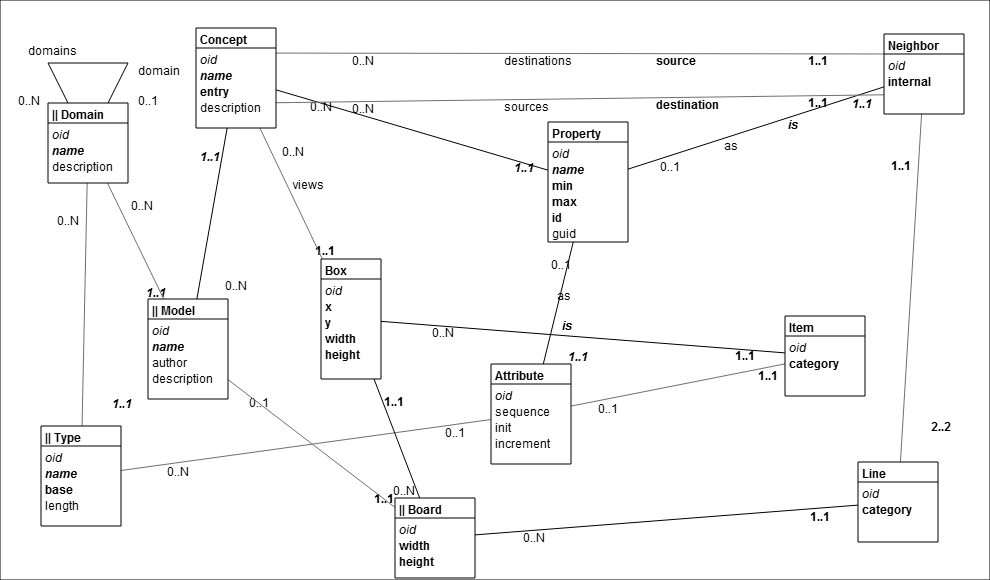
Click the box tool to create a box (a concept in your domain), by clicking on an empty space in the board. You have to select the box to enter its name in the box field of the tool bar.
To move a non selected box, click the box and keep the mouse down while moving it. The connected lines will follow. A selected box cannot be moved.
Click the box to select it. Click again to deselect it. If there are several selected boxes (and/or lines), you may deselect them all by clicking on an empty space in the board. For the last selected box, its title (name) may be changed by entering text in the Box field of the tool bar.
For the last selected box, click in the Box field to obtain and change its name. The box may be declared as entry into the model. A new item may be added to the selected box by entering its name in the Item box, then clicking on the Add button. The item is an attribute of the box (concept). In addition, it may be declared as guid (globally unique identifier--not significant to a user), identifier (significant to a user) or required (mandatory value). The choice is presented in the pop-up list. An item may have an initial (default) value. An existing item may be selected by entering its name and clicking on the Get button. The selected item may be changed (Set button), including its sequence position within the box (Up or Down buttons), or even removed (Remove button). The size of selected boxes may be changed by menu items in the View menu.
If you want to create several boxes, double-click the box tool to stay on. To return to the select mode double-click the select tool.
Click the line tool to create a line between the last two clicked boxes, by clicking on an empty space in the board. The first box is a parent and the second box is a child. By default, the parent box has 0..N cardinalities. The min is 0 and the max is N. By default, the child box has 1..1 cardinalities. An example is Department--0..N----1..1--Employee. A department has from 0 to N employees and an employee works for exactly one department.
The line is a relationship between two boxes (concepts). It has two directions: from parent to child (neighbor) and from child to parent (neighbor). The selected line may be transformed (and obtained in the tool bar) to inheritance line (child inherits from parent), to reflexive line (one-parent box, not two boxes) or to twin line (two lines between the same two boxes must be first created). The choice is presented in the pop-up list. By default, a new line is internal. The child box of the internal line usually is not an entry point into the model. The selected line may also be obtained by clicking on the Get button in the tool bar. The line cardinalities may be changed. For the 1..1 cardinalities, the identifier (id) may be checked on. The line changes may be set by clicking on the Set button.
Click the line, or very close to it, to select it. Click again to deselect it. A reflexive line is selected by clicking on a horizontal portion of the line. If two lines are created between the same two boxes, the last line may be selected by clicking on both lines. The selected line should be displayed in the tool bar by clicking on the Get button. Then, the twin choice will separate the two lines into twins. If there are several selected lines (and/or boxes), you may deselect them all by clicking on an empty space in the board.
If you want to create several lines, double-click the line tool to stay on. To return to the select mode double-click the select tool.
Transform a model, but only non-hidden boxes and lines, to JSON by clicking on the To JSON button above the JSON panel. Copy the JSON text from the JSON panel into a local text file to save the model. Later, paste the JSON text into the JSON panel and click on the From JSON button to obtain the model.
Transform a model to a PNG image by clicking on the To PNG button in front of the PNG panel. Copy the PNG image to a local text file.
The spiral approach to software learning and development, which preserves a project history as a series of code snapshots or spirals, is used in this project.
Learning new software concepts and technologies is a challenging task. Learning in spirals, from simple to more advanced concepts but with concrete software applications, helps students get a reasonable confidence level early on, and motivates them to learn by providing more useful applications. With each new spiral, the project grows and new concepts are introduced. A new spiral is explained with respect to the previous one. The difference between two consecutive spirals is that the next spiral has the new code introduced and the old code modified or deleted. This is called learning by anchoring to what we already understand. With a new spiral, we can come back to what we did previously and improve it. In this way, learning in spirals can touch the same topic several times, but each time with more details in a better version.
There are many books where students have to learn quite a lot before applying new concepts, and even then, it is not obvious how to develop a complete software application. It took me more than ten years of learning and teaching to find out that the initial learning of a new technology must be task driven and not topic (subject) driven. Most software books are topic driven. It takes a quick look at the Table of Contents of almost any software book to realize that each chapter introduces a major topic. In a spiral, there may be more than one topic and all of them relate to what we want to accomplish with the spiral.